Showing posts with label system center. Show all posts

Thursday, August 18, 2016

Detecting Windows License Activation Status Using ConfigMgr DCM and OpsMgr

If someone already done the work, why not share it ?

Tao Yang's post about this is amazing, like all the other posts he makes.

http://goo.gl/84qkX1

I followed his post until the end, and suddenly i came up with some errors in SCCM about the Powershell Scripts Execution Policie ...!

So, i've made this VBScript for the workaround (already post it too in Tao's blog!)

Just replace the part of the Powershell script with this VBScript if you bump into some execution policie issue.

 strComputer = "."   
 Set objWMIService = GetObject("winmgmts:\\" & strComputer & "\root\cimv2")   
 Set colItems = objWMIService.ExecQuery( _  
   "Select * from SoftwareLicensingProduct Where PartialProductKey IS NOT NULL AND ApplicationID = '55c92734-d682-4d71-983e-d6ec3f16059f'",,48)   
 For Each objItem in colItems   
 select case objItem.LicenseStatus  
         case "0"  
                 Wscript.Echo "Unlicensed"  
         case "1"  
                 Wscript.Echo "Licensed"  
         case "2"  
                 Wscript.Echo "Out-of-Box Grace Period"  
         case "3"  
                 Wscript.Echo "Out-of-Tolerance Grace Period"  
         case "4"  
                 Wscript.Echo "Non-Genuine Grace Period"  
         case "5"  
                 Wscript.Echo "Notification"  
         case "6"  
                 Wscript.Echo "ExtendedGrace"  
 end select  
 Next  

Cheers,

Monday, August 8, 2016

Powershell - SCOM (OpsMgr) Distributed Application to SCCM (ConfigMgr) Collection

For reporting purposes i had to create equal SCCM collections with the same members that i had in SCOM Distributed Applications.
Now that i have same DA as Collections, and respective members, i can match alerts (DA from SCOM), as well i can have a list of required updates (Collection from SCCM) in the same PowerBI report.
It can be really useful for Application Owners or Sys Admin teams.

Instead of creating by hand every DA I've in SCCM as a collection, and since i've got around 60 DA's, i came up with this script!
(Sorry for the variable names, and for some bad code - not having the time i need to get it better!)
(PS: Read the comments before you run the script! :) )

 Import-Module OperationsManager  
 # Your SCCM Server  
 $SCCMServer = 'Your SCCM Server'  
 $Class = Get-SCOMClass -DisplayName 'User Created Distributed Application'  
 $DistrApps = Get-SCOMClassInstance -Class $Class  
 $DARelationList = ''  
 $ListaDAandHosts = @()  
 Foreach ($DA in $DistrApps) {  
   $DAHosts = ($DA | % {$_.GetRelatedMonitoringObjects()} | % {$_.GetRelatedMonitoringObjects()}).DisplayName  
   Foreach ($Hostz in $DAHosts) {  
     $ListaDAandHosts += $DA.DisplayName + ';' + ($Hostz -split '\.')[0]  
   }  
 }  
 #This is because i only want DA with valid hostnames!  
 $RegexQuery=[regex]"^[0-9A-Za-z].*;(?=.{1,255}$)[0-9A-Za-z](?:(?:[0-9A-Za-z]|-){0,61}[0-9A-Za-z])?(?:\.[0-9A-Za-z](?:(?:[0-9A-Za-z]|-){0,61}[0-9A-Za-z])?)*\.?$"  
 $ListaDA = @()  
 $ListaDA += 'DA;ServerFQDN'  
 Foreach ($line in $ListaDAandHosts) {  
   If ($RegexQuery.Match($line).Success -eq $true) {      
       $ListaDA += $RegexQuery.Match($line).Groups[0].Value  
   }  
 }  
 # Set the out-file as you like!  
 $ListaDA | Out-File "\\\$SCCMServer\c$\FOLDER\ListaDA.csv"  
 $SCCMScriptBlock = {  
   Import-Module "D:\Program Files\Microsoft Configuration Manager\AdminConsole\bin\ConfigurationManager.psd1"  
   $DACSV = Import-csv 'C:\GDC\ListaDA.csv' -Delimiter ';'  
   $DAList = ($DACSV | Group {$_.DA.Substring(0)}).Name  
   # Set Location to Site Name #  
   Set-Location YOUR_SITE_NAME:  
   # Your SCCM Limit Collection #  
   $Limitingcollections = "All Systems"  
   # Let the show begin #  
   Foreach ($DA in $DAList) {  
     $DAHostList = @()  
     $DAHosts = (($DACSV | ? { $_.DA -eq $DA } | Select ServerFQDN).ServerFQDN)  
     # Create DA If not Exists #    
     If (Get-CMDeviceCollection -Name $DA) {  
       # Does Nothing #  
       $DA + ' | Already exists!'  
     } Else {  
       $DANewCollection = New-CMDeviceCollection -Name "$DA" -LimitingCollectionName $Limitingcollections  
     }  
     # Add each host to Collection #  
     Foreach ( $SCCMAgent in $DAHosts ){  
       Try {  
         Add-CMDeviceCollectionDirectMembershipRule -CollectionName "$DA" -ResourceID $(get-cmdevice -name "$SCCMAgent").ResourceID  
       } Catch {  
         $SCCMAgent + ' | Already in Collection or not found'  
       }  
     }  
       # Move your collection to specific location - if you want to #  
     Move-CMObject -FolderPath 'SITE_NAME:\DeviceCollection\YOUR_SPECIFIC_FOLDER' -InputObject $DANewCollection  
   }  
 }  
 $SCCMSession = New-PSSession -ComputerName $SCCMServer  
 Invoke-Command -Session $SCCMSession -scriptblock $SCCMScriptBlock  

And, that's it!

Thursday, July 14, 2016

C# - First steps (Orchestrator Web-Service!)

First of all, i'm no developer - at all - and i thought that it would be easier to adapt since i (thought) have some powershell skills! (ahahahah)

So, for my first C# project i thought that i could play a little bit with the Orchestrator web-service and manage, list, start (and so on...) some runbooks - well, we all hate the silverlight thing!

This is what i achieved :


The icons with the start,pause,stop and restart functions, are not working (yet!) - that's the next fase!

I'll share the project soon on GitHUB and let you all know.

Cheers,

SCCM (ConfigMgr) - IIS Inventor with VBScript and WMI Classes

Recently we had this need for a customer of ours - Make an IIS Inventory report in SCCM with all the sites, related application pools, bindings and IIS versions.

It seems easy, but in a few moments it turned into a great nightmare, still a great challange - that i accepted gladly!

The first thing i've banged into was the fact of having multiple IIS versions and Operating Systems (IIS 6, 7, 8 - and 2003, 2008, 2012).
Why ?
Because for IIS version 6 you get information from "ROOT\MicrosoftIISv2" namespace, and for IIS>7 you have "ROOT\WebAdministration" namespace.
The problem wasn't having multiple data sources from where you could collect data from - i'll explain it further!
There's a solution, a really easy one to overcome this issue - install IIS WMI 6 Compatability role on your IIS>7 - this will make/create the "ROOT\MicrosoftIISv2" namespace even on IIS>7 machines - this way you'll only have a datasource to 'drink' data from.
But, there're some security issues, that some sysadmins don't like about this role, so i couldn't go there!

But, right before i set the classes i wanted, i created a simple collection with this WQL (All devices with IIS installed) :

 select SMS_R_SYSTEM.ResourceID,SMS_R_SYSTEM.ResourceType,SMS_R_SYSTEM.Name,SMS_R_SYSTEM.SMSUniqueIdentifier,SMS_R_SYSTEM.ResourceDomainORWorkgroup,SMS_R_SYSTEM.Client from SMS_R_System inner join SMS_G_System_SERVICE on SMS_G_System_SERVICE.ResourceID = SMS_R_System.ResourceId where SMS_G_System_SERVICE.Name = 'W3SVC'  

And right after, a custom agent setting where only there i would enable the further classes and the inventory of "C:\Windows\System32\InetSrv" folder so i could inventory inetmgr.exe file so i could've exact IIS version foreach machine.

Now, WMI Classes setup!
Ok! So i checked which classes i was going to set up and read information from, and came up with this :

IIS6 or with IIS 6 WMI Compatability :

 Namespace : MicrosoftIISv2  
 Class : IIsWebVirtualDirSetting  
 Query : SELECT * FROM IIsWebVirtualDirSetting


 Namespace : MicrosoftIISv2  
 Class : IIsWebServerSetting  
 Query : SELECT * FROM IIsWebServerSetting  

For IIS>7 :

 Namespace : WebAdministration  
 Class : Application  
 Query : SELECT * FROM Application

 Namespace : WebAdministration  
 Class : Site  
 Query : SELECT * FROM Site      

But right there, feeling really lucky about how it was going, and banged into my first issue!
At (ROOT\WebAdministration) Application class! You can't enable it because there's already a SCCM built-in class with this name.
So, after some googling i've learned that i could make a UNION class that "mirrors" all the information from a source into this new class in a namespace i wanted - and came up with this code :

 #pragma namespace("\\\\.\\root\\cimv2")  
 [Union,ViewSources{"select ApplicationPool,EnabledProtocols,ServiceAutoStartEnabled,ServiceAutoStartProvider,Path,PreloadEnabled,SiteName from Application"},ViewSpaces{"\\\\.\\root\\webadministration"},dynamic,Provider("MS_VIEW_INSTANCE_PROVIDER")]  
 class IIS_Application  
 {  
     [PropertySources{"ApplicationPool"}] string ApplicationPool;  
     [PropertySources{"EnabledProtocols"}] string EnabledProtocols;  
     [PropertySources{"ServiceAutoStartEnabled"}] boolean ServiceAutoStartEnabled;  
     [PropertySources{"ServiceAutoStartProvider"}] string ServiceAutoStartProvider;  
     [PropertySources{"Path"},key] string Path;  
     [PropertySources{"PreloadEnabled"}] boolean PreloadEnabled;  
     [PropertySources{"SiteName"},key] string SiteName;  
 };  

A Free-Tip : You must have all the KEY propreties mapped in your new class, meaning that if your source class has 3 key properties, your new custom class must also have those 3 key properties.

Basically it's kind of a view of "ROOT\WebAdministration\Application" class that i created in "ROOT\CIMV2" and named it "IIS_Application".

There was another problem i faced - SCCM hardware inventory can't read WMI Classes proprieties when they are objects, meaning that i've tried to set "ROOT\WebAdministration\Site" for having sites information with binding association and i couldn't.
So, again, i needed to make a brand new class :

 #pragma namespace ("\\\\.\\root\\cimv2")  
 class IIS_Bindings  
 {  
 [key]  
 STRING SiteName;   
 STRING Bindings;  
 UInt32 SiteId;  
 };  

But there's a problem - this is not a view! This is a simple new class - with no data, just empty! And the only way (i know) to populate this, was with this script :

 strComputer = "."  
     Set objWMIService = GetObject("winmgmts:{authenticationLevel=pktPrivacy}\\" & strComputer & "\root\cimv2")  
     Set colBindingsItems = objWMIService.ExecQuery("Select * from IIS_Bindings")  
     For Each objItem in colBindingsItems  
             objItem.Delete_()  
     Next  
     Set objWMIService = GetObject("winmgmts:{authenticationLevel=pktPrivacy}\\" & strComputer & "\root\WebAdministration")  
     Set colItems = objWMIService.ExecQuery("Select * from Site")  
     Set oWMI = GetObject("winmgmts:root\cimv2")  
     Set oData = oWMI.Get("IIS_Bindings")  
     Set oInstance = oData.SpawnInstance_  
     For Each objItem in colItems  
             oInstance.SiteName = objItem.Name  
             oInstance.SiteId = objItem.Id  
             Bindings = ""  
             For i = 0 to Ubound(objItem.Bindings)  
         Bindings = Bindings + objItem.Bindings(i).BindingInformation + "|"  
             Next  
             Bindings = LEFT(Bindings, (Len(Bindings) -1))  
             oInstance.Bindings = Bindings  
             oInstance.Put_()  
     Next  

Yes, you need to do a new based script application and deploy it into your collection - it will take a wile so you get data back into your CM database.

So now, that we've done all the setup we need to have all IIS information - in my case "Machine;Site;ApplicationPool;Path;Bindings;IISVersion" - it's time to query!
For every class you enable, SCCM will create a table like "MY_CLASSNAME_DATA", for example : IIS_Application_DATA
And it's here where all the magic can be done.

So, finally, i came up with this query (It needs to be modified to return better results, specially when it comes to the bindings ... i'll do it later someday!)

 SELECT DISTINCT  
     CSYS.Name0 as [Server Name],  
     IISApp.ApplicationPool00 as [AppPools],    
     IISApp.SiteName00 as [Site Name],  
     IISBind.Bindings00 as [Bindings],  
     SUBSTRING(SF.FileVersion, 1,14) AS [IIS Version]  
 FROM   
     [V_R_system] SYS with (nolock)  
     JOIN [v_GS_COMPUTER_SYSTEM] CSYS on CSYS.ResourceID = sys.ResourceID  
     JOIN [v_FullCollectionMembership] FCM on FCM.ResourceID = CSYS.ResourceID  
     JOIN [v_GS_SoftwareFile] SF on SF.ResourceID = SYS.ResourceID  
     FULL JOIN [IIS_Application_DATA] IISApp on IISApp.MachineID = SYS.ResourceID  
     FULL JOIN [IIS_Bindings_DATA] IISBind on IISBind.MachineID = SYS.ResourceID  
 WHERE  
     FCM.CollectionID like 'YOU_Collection_ID_Goes_Here'  
 AND   
     IISApp.SiteName00 = IISBind.SiteName00  
 AND   
     SF.FileName like '%inetmgr%'  

NOTE: This is the first version of the project, a POC if you want, just to show you how to get data, perhpaps it has some flaws - but it's a way of showing how to get data specially if you don't have it in the first place.


Hope this might be useful to you in someway.

Cheers,

Thursday, June 2, 2016

OpsMgr (SCOM) - Management Servers Services Status and System Consumption

Some Operations Manager installations just go off the marks when it comes to memory and processor utilization by SCOM services (omsdk, healthservice and cshost).
So, it might be useful to know what's going on your servers, specially when you apply a new MP, or change any other configuration.
In my particular case i just found out that a bunch of gateway servers went to it's limit in Unix/Linux monitoring.
So, i made this Powershell script that retrieves me :
Management Server | Service Name | Service Status | Service PID | CPU Time | Private Bytes

Basically i just make some WMI queries to each MS i've got and put all the info i retrieve in a fancy HTML table.

Well, the output :

And the most important, the code:
 Import-Module OperationsManager  
 New-SCOMManagementGroupConnection -ComputerName $env:computername  
 $managementServers = (Get-SCOMManagementServer).DisplayName  
 $Head = "<style>"  
 $Head +="BODY{background-color:White;font-family:Verdana,sans-serif; font-size: x-small;}"  
 $Head +="TABLE{font-family: verdana,arial,sans-serif; font-size:9px; color:#333333; border-width: 1px; border-color: #666666; border-collapse: collapse;}"  
 $Head +="TH{border-width: 1px; padding: 8px; border-style: solid; border-color: #666666; background-color: #dedede;}"  
 $Head +="TD{border-width: 1px; padding: 8px; border-style: solid;}"  
 $Head +="</style>"  
 $myStatus = "<br><br>"  
 # Your logo (if any) goes here :)  
 $myStatus += "<img src='.\images\logo' height='12%' width='12%'>"  
 $myStatus += "<center><h1 style=color:#999999>.: (OpsMgr) Management Servers - Services Status :.</center>"  
 $myStatus += "<table>"  
 $myStatus += "<tr>"  
 $myStatus += "<td>Management Server</td>"  
 $myStatus += "<td>Service</td>"  
 $myStatus += "<td>Status</td>"  
 $myStatus += "<td>PID</td>"  
 $myStatus += "<td>Processor Time</td>"  
 $myStatus += "<td>Private Bytes (in MB)</td>"  
 $myStatus += "</tr>"  
 foreach ( $ms in $managementServers ) {  
   $perflist = (get-wmiobject Win32_PerfFormattedData_PerfProc_Process -ComputerName $ms)   
   $services = @("HealthService","OMSDK","cshost")  
   foreach ($service in $services) {   
     $mypid = Get-WmiObject win32_service -ComputerName $ms | ?{$_.Name -like "$service" } | select -ExpandProperty ProcessId  
     $procStatus = (Get-Service -ComputerName $ms -Name $service).Status  
     $cpuCon = ($perflist | ? {$_.IDProcess -eq "$mypid" }).PercentProcessorTime  
     $privBytes = [math]::Round((($perflist | ? {$_.IDProcess -eq "$mypid" }).PrivateBytes / 1MB))  
     $myStatus += "<tr>"  
     $myStatus += "<td>$ms</td>"  
     $myStatus += "<td>$service</td>"  
     $myStatus += "<td>$procStatus</td>"  
     $myStatus += "<td>$mypid</td>"  
     $myStatus += "<td>$cpuCon</td>"  
     $myStatus += "<td>$privBytes</td>"  
     $myStatus += "</tr>"  
   }  
 }  
 $myStatus += "</table>"  
 $HTML = ConvertTo-Html -Head $head -Body $myStatus  
 $HTML > 1.html  

Cheers,

Monday, May 23, 2016

OpsMgr (SCOM) - Solve the "An Item With The Same Key Has Already Been Added" error


For some reasons, like, having a bunch of procedures that include Unix/Linux servers into SCOM, you might get the 'An Item With The Same Key Has Already Been Added' error when you go to Administration - Unix/Linux Agents.

That means that you've duplicate unix/linux servers in your SCOM installation.

The only way to solve this is to find the duplicate entry, and delete them both.

To do that, you can't use the Get-SCXAgent, this will output unique values only - the only way to solve this is going to your OpsDB execute a querry (bellow), and foreach value you get, you need to run the 'get-scxagent "duplicate_value" | Remove-ScxAgent' cmdlet.

So, first things first.

The query :

 DECLARE @ClassName NVARCHAR(256)   
 DECLARE @CManagedTypeId UNIQUEIDENTIFIER   
 SET @ClassName = 'Microsoft.Unix.OperatingSystem'  
 SET @CManagedTypeId = (   
     SELECT ManagedTypeId  
     FROM ManagedType   
     WHERE TypeName = @ClassName )   
 SELECT  
     [ManagedEntityGenericView].[Id],   
     [ManagedEntityGenericView].[Name],   
     [ManagedEntityGenericView].[Path],   
     [ManagedEntityGenericView].[FullName],   
     [ManagedEntityGenericView].[LastModified],   
     [ManagedEntityGenericView].[TypedManagedEntityId],   
     NULL AS SourceEntityId   
 FROM  
     dbo.ManagedEntityGenericView   
 INNER JOIN (      
     SELECT DISTINCT [BaseManagedEntityId]   
     FROM dbo.[TypedManagedEntity] TME WITH(NOLOCK)   
     JOIN [dbo].[DerivedManagedTypes] DT ON DT.[DerivedTypeId] = TME.[ManagedTypeId]   
     WHERE  
         DT.[BaseTypeId] = @CManagedTypeId  
         AND TME.IsDeleted = 0 )  
 AS ManagedTypeIdForManagedEntitiesByManagedTypeAndDerived   
 ON ManagedTypeIdForManagedEntitiesByManagedTypeAndDerived.[BaseManagedEntityId] = [Id]   
 WHERE  
     [IsDeleted] = 0 AND  
     [TypedMonitoringObjectIsDeleted] = 0 AND  
     [ManagedEntityGenericView].[Path] IN (   
                                             SELECT [BaseManagedEntity].[Path]   
                                             FROM [BaseManagedEntity]   
                                             GROUP BY [BaseManagedEntity].[Path]   
                                             HAVING COUNT([BaseManagedEntity].[Path]) > 1   
                                          )  
 GROUP BY [ManagedEntityGenericView].[Id],   
     [ManagedEntityGenericView].[Name],   
     [ManagedEntityGenericView].[Path],   
     [ManagedEntityGenericView].[FullName],   
     [ManagedEntityGenericView].[LastModified],   
     [ManagedEntityGenericView].[TypedManagedEntityId]  
 HAVING COUNT([ManagedEntityGenericView].[Path]) > 1  

Now that you've the duplicate values to delete, just open a powershell prompt and run the follow cmdlet foreach duplicate value you've.

 get-scxagent "Your_Server" | Remove-ScxAgent  

And, your problem is solved.

Cheers,

OpsMgr (SCOM) - BUILTIN\Administrators

Well, imagine that for some reason you delete the "BUILTIN\Administrators" group in OpsMgr Administrator Role, you might have some issues if you don't have all the profiles and roles correctly assinged.

There's a workaround, not supported by MSFT, but, well ... :)

Into OpsDB, run this query.

 insert into AzMan_Role_SIDMember ([RoleID],[MemberSID])  
 VALUES (1, 0x01020000000000052000000020020000) -- This is the hex value for BUILTIN\Administrators  

And off you go!

Cheers,

Friday, May 20, 2016

OpsMgr (SCOM) - Ghost Agents

They show up in Monitoring views, but not in Administration ?
Well ... no problem!

At OperationsManager Database :

 -- #1  
 SELECT * FROM dbo.[BaseManagedEntity] where FullName Like '%Windows.Computer%' and Name = 'your_host_here'  
 -- #2  
 UPDATE dbo.[BaseManagedEntity]  
 SET IsDeleted = 1   
 WHERE FullName Like '%Windows.Computer%' and Name = 'your_host_here'  

Hope it helps you out.

Cheers,

Thursday, May 19, 2016

SCCM (ConfigMgr) - SHA-2/256 is NOT supported on this platform | Unix/Linux Systems

It's a new error for me.
It happened in a Solaris 10, and i got stuck for a while to troubleshoot and solve - fortunately i've got some nix skills from earlier professional experiences, the same way i've got google search skills.

So, if you came up with the error message in your (/var/opt/microsoft/scxcm.log) :

"SHA-2/256 is NOT supported on this platform"


You need to do this :
(as root)
cd /opt/microsoft/configmgr/bin

./uninstall

cd ../../
rm -Rf configmgr

Now, re-install your agent with the '-ignoreSHA256validation' parameter :

./install -mp CCM_MP_SERVER -sitecode SITE_CODE -ignoreSHA256validation -nostart ccm-Sol10sparc.tar


(you might need to replace 'ccm-Sol10sparc.tar' to your correct package)


cd /opt/microsoft/configmgr/bin
./ccmexecd start

So, if you go to your SCCM console, your new device will show up correctly.

Friday, May 13, 2016

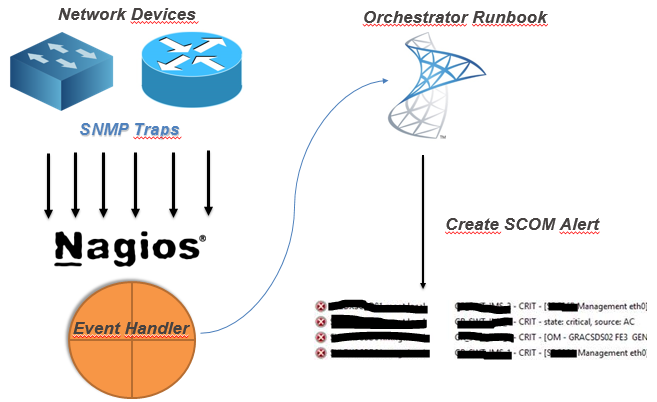
Nagios/Check_MK Alerts to SCOM (OpsMgr) using Orchestrator

Recently a customer needed to process 'tons' of snmp traps from several equipments, from several vendors, and some, snmp v3 traps, these not supported by OpsMgr. But still forward those alerts to Operations Manager.
So, i built a Nagios server! Yes Nagios! Nagios, no matter what, can and it's usefull.
And it's helping us a lot.
I decided to go for what i like the most - OMD (omdistro.com), so this is made specific for Check_MK configuration, but you can 'port' it to Nagios Core.

So. Nagios installed, lot's of equipment configured, snmpd configured, mibs copied, and tons of traps received, problem solved!
Now, forward those alerts to SCOM!

My idea (and working idea!) :

(yes, this was the powerpoint i sent to the customer! - hahah!)


So, after you've your monitoring criteria in Nagios configured, you need to :
  1. Create a Orchestrator Runbook that receives some parameters
  2. Create Nagios Event-Handler to 'consume' that runbook by orchestrator web-service


So, my Orchestrator Runbook :


Details about the MKAlertInput :


Create Alert details :


So, since i've got my runbook, i need to make a bash script to consume orchestrator runbook.
But, first, you need to know :
Your new runbook ID
And your runbook parameters ID
How ? Simple !
Connect to your MSSQL Server (Orchestrator BD) and run this :

 -- Runbook ID
 SELECT   
 Name as 'Runbook Name',  
 LOWER(ID) as 'Runbook ID'  
 FROM [Orchestrator].[Microsoft.SystemCenter.Orchestrator].[Runbooks]  
 -- Parameters ID
 SELECT LOWER(Parameters.Id) , Parameters.Name  
 FROM [Orchestrator].[Microsoft.SystemCenter.Orchestrator].[RunbookParameters] AS Parameters  
 INNER JOIN [Orchestrator].[Microsoft.SystemCenter.Orchestrator].[Runbooks] Runbooks ON Parameters.RunbookId = Runbooks.Id  
 -- THIS ID Showld be the one from the first query!  
 WHERE Runbooks.Id = '0B3E5FA3-A2E9-4337-BC63-050FC347A908'   

Since you got the ID's you need, you need to create your Nagios Event Handler, so every time you've na alert you can handle it and forward it to SCOM.


So, my script (for this scenario!)
 #!/bin/sh  
 # Nagios input data into vars#  
 host_name="$1"  
 description="$3"  
 plugin_output="$3 | $4 @ $5"  
 last_state_change=`date +"%d-%m-%Y %T"`  
 servicestate="$2"  
 # Orchestrator Info #  
 url='http://ORCHSERVER:81/Orchestrator2012/Orchestrator.svc/Jobs/'  
 user='DOMAIN\ORCHUSER'  
 password='ORCHPASSWORD'  
 case "$servicestate" in  
     OK)  
         echo ""  
     ;;  
     WARNING)  
         echo ""  
     ;;  
     CRITICAL)  
         xml="<?xml version=\"1.0\" encoding=\"utf-8\" standalone=\"yes\"?><entry xmlns:d=\"http://schemas.microsoft.com/ado/2007/08/dataservices\" xmlns:m=\"http://schemas.microsoft.com/ado/2007/08/dataservices/metadata\" xmlns=\"http://www.w3.org/2005/Atom\"><content type=\"application/xml\"><m:properties><d:Parameters>&lt;Data&gt;&lt;Parameter&gt;&lt;Name&gt;host_name&lt;/Name&gt;&lt;ID&gt;{c2555c8a-4c1c-4c04-a175-d27ccb27aeb3}&lt;/ID&gt;&lt;Value&gt;$host_name&lt;/Value&gt;&lt;/Parameter&gt;&lt;Parameter&gt;&lt;Name&gt;description&lt;/Name&gt;&lt;ID&gt;{e47406b6-fbd7-4bc5-b7a5-a1216f4fdfe5}&lt;/ID&gt;&lt;Value&gt;$description&lt;/Value&gt;&lt;/Parameter&gt;&lt;Parameter&gt;&lt;Name&gt;plugin_output&lt;/Name&gt;&lt;ID&gt;{406620e8-5fc0-4318-ad6b-987d9d491b09}&lt;/ID&gt;&lt;Value&gt;$plugin_output&lt;/Value&gt;&lt;/Parameter&gt;&lt;Parameter&gt;&lt;Name&gt;last_state_change&lt;/Name&gt;&lt;ID&gt;{35ab0932-df75-42d0-9715-935d3510b532}&lt;/ID&gt;&lt;Value&gt;$last_state_change&lt;/Value&gt;&lt;/Parameter&gt;&lt;/Data&gt;</d:Parameters><d:RunbookId type=\"Edm.Guid\">0b3e5fa3-a2e9-4337-bc63-050fc347a908</d:RunbookId></m:properties></content></entry>"  
         # XML 2 File  
         xml_file=`< /dev/urandom tr -dc _A-Z-a-z-0-9 | head -c10`  
         echo "$xml" > /tmp/$xml_file  
         # Post data into SCOrch Web-Service  
         curl --ntlm -u $user:$password -H 'Content-Type:application/atom+xml' -d @/tmp/$xml_file -X POST $url  
         ;;  
     UNKNOWN)  
         echo ""  
         ;;  
 esac  

Now, you need to tell nagios to use this script, so paste this config : (Remember, i'm using Check_MK)
 extra_nagios_conf += r"""  
 define command {  
   command_name  scorchws  
   command_line  /omd/sites/nagdsv/gdc/bin/orchestratorws.sh "$HOSTNAME$" "$SERVICESTATE$" "$SERVICEDESC$" "$SERVICEOUTPUT$" "$HOSTGROUPNAMES$"  
 }  
 """  
 extra_service_conf["event_handler"] = [  
   ( "scorchws", ALL_HOSTS, ALL_SERVICES ),  
 ]  
 extra_service_conf["event_handler_enabled"] = [  
   ( "1", ALL_HOSTS, ALL_SERVICES ),  
 ]  

Everything in place … this is what you get in SCOM :

Hope this could be helpful for you :)

Cheers,

Thursday, May 5, 2016

SCOrch (Orchestrator) - Runbook Monitor

I've got a bunch of Orchestrator Runbooks that need to be always running, and sometimes (reboots, or other reasons) those Runbooks maybe stopped.

So i've made this Powershell script to put on schedule tasks or somewhere else (perhaps a Operations Manager monitor - i'll do it later! :) )

The script :

<#
If for some reason you get the following PS error :
    Exception calling "GetResponse" with "0" argument(s): "The remote server returned an error: (400) Bad Request."

    Please log-in into Orchestrator Database and run :

    TRUNCATE TABLE [Microsoft.SystemCenter.Orchestrator.Internal].AuthorizationCache;
    EXEC [Microsoft.SystemCenter.Orchestrator.Maintenance].EnqueueRecurrentTask ‘ClearAuthorizationCache’

#>
 'Starting monitoring ... ' >> C:\Powershell\Log\RunbookManager.log  
 # Runbook names here :)  
 $OpsMgrRunbooks =@('1-Runbook','2-Runbook','3-Any-other-Runbook-Name')  
 $user = 'your_orchestrator_user'  
 $pass = ConvertTo-SecureString 'your_password' -AsPlainText -Force  
 $creds = New-Object System.Management.Automation.PsCredential($user,$pass)  
 foreach ($runbook in $OpsMgrRunbooks) {  
   $url = "http://YOUR_ORCHESTRATOR_SERVER:81/Orchestrator2012/Orchestrator.svc/Jobs()?`$expand=Runbook&`$filter=(Runbook/Name eq '$runbook')&`$select=Runbook/Name,Status"  
   $request = [System.Net.HttpWebRequest]::Create($url)  
   $request.Credentials = $creds  
   $request.Timeout = 120000  
   $request.ContentType = 'application/atom+xml,application/xml'  
   $request.Headers.Add('DataServiceVersion', '2.0;NetFx')  
   $request.Method = 'GET'  
   $response = $request.GetResponse()  
   $requestStream = $response.GetResponseStream()  
   $readStream=new-object System.IO.StreamReader $requestStream  
   $Output = $readStream.ReadToEnd()  
   $readStream.Close()  
   $response.Close()  
   $Output > $env:TEMP\1.log  
   $htmlid = Get-Content -Path $env:TEMP\1.log | Select-String -pattern '<id>.*Runbooks.*'  
   $bookid = ($htmlid -split "'")[1]  
   $status = $Output -match "<d:Status>Running</d:Status>"  
   If ($Status -ne $True) {  
     $request = ''  
     $request = [System.Net.HttpWebRequest]::Create("http://YOUR_ORCHESTRATOR_SERVER:81/Orchestrator2012/Orchestrator.svc/Jobs")  
     $request.Credentials = $creds  
     $request.Method = "POST"  
     $request.UserAgent = "Microsoft ADO.NET Data Services"  
     $request.Accept = "application/atom+xml,application/xml"  
     $request.ContentType = "application/atom+xml"  
     $request.KeepAlive = $true  
     $request.Headers.Add("Accept-Encoding","identity")  
     $request.Headers.Add("Accept-Language","en-US")  
     $request.Headers.Add("DataServiceVersion","1.0;NetFx")  
     $request.Headers.Add("MaxDataServiceVersion","2.0;NetFx")  
     $request.Headers.Add("Pragma","no-cache")  
 $requestBody = @"  
 <?xml version="1.0" encoding="utf-8" standalone="yes"?>  
 <entry xmlns:d="http://schemas.microsoft.com/ado/2007/08/dataservices" xmlns:m="http://schemas.microsoft.com/ado/2007/08/dataservices/metadata" xmlns="http://www.w3.org/2005/Atom">  
   <content type="application/xml">  
     <m:properties>  
       <d:RunbookId m:type="Edm.Guid">$bookid</d:RunbookId>  
     </m:properties>  
   </content>  
 </entry>  
 "@      
     $requestStream = new-object System.IO.StreamWriter $Request.GetRequestStream()  
     $requestStream.Write($RequestBody)  
     $requestStream.Flush()  
     $requestStream.Close()  
     [System.Net.HttpWebResponse]$response=[System.Net.HttpWebResponse] $Request.GetResponse()  
     $responseStream = $Response.GetResponseStream()  
     $readStream = new-object System.IO.StreamReader $responseStream  
     $responseString = $readStream.ReadToEnd()  
     $readStream.Close()  
     $responseStream.Close()  
     if ($response.StatusCode -eq 'Created') {  
       $jobId = ([xml]$responseString).entry.content.properties.Id.InnerText  
       "Successfully started runbook: $rubook. Job ID: $jobId" >> C:\Powershell\Log\RunbookManager.log  
     }  
     else { "Could not start runbook $runbook. Status: $response.StatusCode" >> C:\Powershell\Log\RunbookManager.log }  
   }  
   Else { "Runbook $runbook | $bookid - Already running" >> C:\Powershell\Log\RunbookManager.log }  
 }  

You'll get the following output :

Runbook 1.Runbook_Testing | 6063dfb2-0f86-4b49-bc38-72a9bef9239c - Already running
Runbook 1.2 SCOM Close Alert | 0d51fb6e-0112-4e91-84f1-a713cd5fd1ae - Already running
Runbook 1 - AlertForwarding | 22585473-7906-4ca4-b4e3-121657cb2e42 - Already running
Successfully started runbook. Job ID:  0a1fdc16-dce4-4585-a2a2-a3da273a704e
Successfully started runbook. Job ID:  ee345fc4-f21b-4d05-be8c-c47249ceec36

Hope you find it useful :)

Cheers,

Tuesday, April 26, 2016

OpsMgr (SCOM) - Goodbye Import-Module OperationsManager

Hello SDK!

We all suffer about the same.
Import-Module OperationsManager just takes too long - 13 seconds!
 $(Get-Date)  
 Import-Module OperationsManager  
 $(Get-Date)  
 Tuesday, April 26, 2016 3:42:35 PM  
 Tuesday, April 26, 2016 3:42:48 PM  
So, if you use powershell in your subscriptions in OpsMgr, to affect some customfileds with extra data, well ... it could be a problem if you have a lot of 'Impor-Modules' going on.

So, i decided to put myself working on 'how to (not) use operations manager powershell module).

First things first.
Load your SDK. (DLL's)
 [System.Reflection.Assembly]::LoadWithPartialName("Microsoft.EnterpriseManagement.OperationsManager.Common") | Out-Null  
 [System.Reflection.Assembly]::LoadWithPartialName('Microsoft.EnterpriseManagement.Core') | Out-Null  
 [System.Reflection.Assembly]::LoadWithPartialName('Microsoft.EnterpriseManagement.OperationsManager') | Out-Null  
 [System.Reflection.Assembly]::LoadWithPartialName('Microsoft.EnterpriseManagement.Runtime') | Out-Null  
Now, let's open up a connection to your MS.
 $MGConnSetting = New-Object Microsoft.EnterpriseManagement.ManagementGroupConnectionSettings($env:computername)  
 $MG = New-Object Microsoft.EnterpriseManagement.ManagementGroup($MGConnSetting)  
Now, inside this new object ($MG) you have it all, and i mean it, ALL!
Let's say you want to list a specific list of alerts based on a specific criteria.
Well, untill now you used get-scomalert cmdlet ... now you use this :
 $newTime = (Get-Date).AddHours(-24)  
 $Criteria = New-Object Microsoft.EnterpriseManagement.Monitoring.MonitoringAlertCriteria("ResolutionState = 0 AND Severity >= 1 AND TimeRaised > `'$newTime`'")  
 $MG.GetMonitoringAlerts($Criteria)  
Well, the difference ? 13 seconds!
Old-way :
 $(Get-Date)  
 Import-Module OperationsManager  
 $newTime = (Get-Date).AddHours(-24)  
 $Criteria = New-Object Microsoft.EnterpriseManagement.Monitoring.MonitoringAlertCriteria("ResolutionState = 0 AND Severity >= 1 AND TimeRaised > `'$newTime`'")  
 $Alerts = Get-SCOMAlert -Criteria $Criteria  
 $(Get-Date)  
 Tuesday, April 26, 2016 3:54:06 PM  
 Tuesday, April 26, 2016 3:54:19 PM  
New-way :
 $(Get-Date)  
 $newTime = (Get-Date).AddHours(-24)  
 $Criteria = New-Object Microsoft.EnterpriseManagement.Monitoring.MonitoringAlertCriteria("ResolutionState = 0 AND Severity >= 1 AND TimeRaised > `'$newTime`'")  
 $Alerts = $MG.GetMonitoringAlerts($Criteria)  
 $(Get-Date)  
 Tuesday, April 26, 2016 3:54:32 PM  
 Tuesday, April 26, 2016 3:54:32 PM  
Other examples :
 Get-SCOMClassInstance  
in our new way :
 $ClassCriteria = New-Object Microsoft.EnterpriseManagement.Configuration.MonitoringClassCriteria("DisplayName = 'Test Class'")  
 $MonitoringClass = $MG.GetMonitoringClasses($ClassCriteria)  
And related MonitoringObjects ? (Get-SCOMMonitoringObject) ?
 $MG.GetMonitoringObjects($MonitoringClass[0])  

Tuesday, April 12, 2016

OpsMgr (SCOM) - Visual Studio Report (System Drive Available Space)

Challanged by a local PFE friend to start using Visual Studio to create my reports, and keeping in mind i'm no SQL expert, and no Report-Builder greatest fan, i tried to make a costumers request on specific report they wanted (C: Drive available Space)!

So, since i'm kind new to Visual Studio, and to this scenario in general, i decided to make this how to, and obviously, share it here.

So! Let's open Visual Studio and click NEW!

And then :


You'll have a blank report, so we need to add a datasource (from where you'll get your data from!)
(Since we're using OpsMgrDW database...)


Then, add a dataset (it's a query!) :)

This one i used!

 SELECT DISTINCT VME.Path AS Agente, DISKs.SystemDiskUsed AS FreePercentage, DISKs.SystemDiskFreeMB AS FreeMB  
 FROM Perf.vPerfDaily AS PERF   
 INNER JOIN vManagedEntity AS VME ON PERF.ManagedEntityRowId = VME.ManagedEntityRowId   
 INNER JOIN vPerformanceRuleInstance AS PRI ON PRI.PerformanceRuleInstanceRowId = PERF.PerformanceRuleInstanceRowId   
 INNER JOIN vPerformanceRule AS PR ON PR.RuleRowId = PRI.RuleRowId   
 LEFT OUTER JOIN  
 (  
     SELECT ME.Path AS Computer,  
     AVG(CASE WHEN PR.CounterName = '% Free Space' THEN PERF.AverageValue END) AS SystemDiskUsed,   
     AVG(CASE WHEN PR.CounterName = 'Free Megabytes' THEN PERF.AverageValue END) AS SystemDiskFreeMB  
     FROM Perf.vPerfDaily AS PERF   
     INNER JOIN vPerformanceRuleInstance AS PRI ON PRI.PerformanceRuleInstanceRowId = PERF.PerformanceRuleInstanceRowId  
     INNER JOIN vPerformanceRule AS PR ON PR.RuleRowId = PRI.RuleRowId  
     INNER JOIN vManagedEntity AS ME ON PERF.ManagedEntityRowId = ME.ManagedEntityRowId  
     WHERE (PERF.DateTime > DATEADD(Day, - 7, GETDATE()))   
     AND (PR.CounterName = '% Free Space'   
     OR PR.CounterName = 'Free Megabytes') AND (PRI.InstanceName = 'C:')  
     GROUP BY ME.Path, PRI.InstanceName  
 ) AS DISKs ON VME.Path = DISKs.Computer  
 WHERE (PERF.DateTime > GETUTCDATE() - 2)   
 AND (PR.CounterName LIKE '% Free Space')  
 AND (PRI.InstanceName LIKE 'C:')  
 ORDER BY FreeMB  


Then, add a matrix, with that dataset.


Add a logo you may want (Company logo perhaps!):


Change the expression value for the FreeMB (Just a tweak to look better!)


So, now, let's add some colour to it with a new row with a 'progress bar'.
First, add the row:


Then, insert the 'Data Bar'


For the 'progress bar' you added, change the values of its expression like : 


And the values of the series fill propreties, just to make it RED when is bellow a threshold you define.


As you did for the FreeMB field, do the same for the Free% :


Run the preview and you'll get :


And that's it! :)
Save the project, copy the RDL file into your Reporting Services server and schedule it!

In the future i'll make other posts like this, now that i'm a Visual Studio rookie :)

Cheers :)

Monday, April 11, 2016

OpsMgr (SCOM) - Powershell Get Servers in DA

I got this need to upgrade this script ( [SCOM & Orchestrator] - Alert Forwarding ) to include a new CustomField in the alarm properties with the DA name the object belongs to!
So i wondered if somehow was possible to know to which DA a specific server belongs to, and came up with this 'idea' (poweshell script!):

 Import-Module OperationsManager  
 $list = Get-SCOMClass -DisplayName "DA - NAME - HERE" | Get-SCOMClassInstance | %{$_.GetRelatedMonitoringObjects()} | %{$_.GetMonitoringRelationshipObjects()} | select SourceMonitoringObject, TargetMonitoringObject  
 ForEach ($i in $list) {  
     If ( $i.TargetMonitoringObject.DisplayName -eq 'SERVER_FQDN' ) {   
         $DA += $i.SourceMonitoringObject.DisplayName + ' || '  
     }  
}  

Enjoy :)

Friday, April 8, 2016

SCCM - Inventory SQL Query (Server Info)

The guy who manages CMDB wanted to update some CMDB fields, like Total Memory, CPU, Storage and OS Information on every registered server.

So, since SCCM is our configuration and also our "inventory" application, perhaps we could do some SQL-Query to save the day.

 SELECT DISTINCT   
    [RSYS].Netbios_Name0 AS [CI Name],  
      ROUND([OS].TotalVirtualMemorySize0 / CAST(1024 AS FLOAT),0) AS [Total RAM (GB)],  
      CASE WHEN ISNULL(SUM(CAST([LDISK].Size0 AS INT)),0) / 1024 > 0  
      THEN ISNULL(SUM(CAST([LDISK].Size0 AS INT)),0) / 1024  
      ELSE 1  
      END AS [Total Storage (GB)],  
      ROUND(SUM(CAST([LDISK].FreeSpace0 AS FLOAT) ) / CAST(1024 AS FLOAT),1) AS [Total Free Space (GB)],  
      [CPU].Name0 AS [CPU Info],  
      CASE WHEN [CPU].NumberOfCores0 IS NULL THEN '0' ELSE [CPU].NumberOfCores0 END AS Cores,  
      CASE WHEN [CPU].NumberOfLogicalProcessors0 IS NULL THEN '0' ELSE [CPU].NumberOfLogicalProcessors0 END AS [Logical Processors],  
      COUNT([CPU].ResourceID) AS [Number of CPUs],  
      [OS].Caption0 AS [OS]  
  FROM v_R_System RSYS  
      JOIN v_GS_PROCESSOR CPU on RSYS.ResourceID = CPU.ResourceID  
    JOIN v_GS_LOGICAL_DISK LDISK on RSYS.ResourceID = LDISK.ResourceID   
      JOIN v_GS_OPERATING_SYSTEM OS ON RSYS.ResourceID = OS.ResourceID  
 WHERE ISNULL([RSYS].Obsolete0, 0) <> 1  
 AND [LDISK].Size0 IS NOT NULL  
 AND ( [LDISK].DeviceID0 = 'C:' OR [LDISK].VolumeName0 = '/' )  
 GROUP BY [RSYS].Netbios_Name0, [OS].Caption0, [OS].TotalVirtualMemorySize0, [CPU].Name0, [LDISK].DeviceID0, [LDISK].VolumeName0, [LDISK].Size0,[CPU].NumberOfCores0,[CPU].NumberOfLogicalProcessors0  
 ORDER BY [RSYS].Netbios_Name0  

This will give you something like this :


See you soon!

Thursday, April 7, 2016

OpsMgr (SCOM) - Create Performance Charts in Powershell

It might be usefull for people who don't have Datazen or just want to create and manage their own costumized HTML views, or perhaps, for fun!

Powershell is one of the things i like the most while exploring everything that SCOM (and other System Center tools) can give to you, it just makes everything you want, a way or another.

So.

What about creating this in a Powershell script ?


This is the script that does all the magic :

!!NOTE!! : For the most problematic servers in specific groups i've i retrieve memory, cpu, and disk usage performance data, but, you change this logic as well as the performance counters.

Please attempt to the comments in-line so you can understand the logic :)
 [void][Reflection.Assembly]::LoadWithPartialName("System.Windows.Forms.DataVisualization")  
 Import-Module OperationsManager  
 New-SCOMManagementGroupConnection -ComputerName "opsmgr.server.local" #Change here :)  
 $script:scriptpath = "C:\PS\OpsMgr_PerfCharts\images"  
   
 # Foreach Group above list the most problematic agents   
   
 $MyGroups = @()  
 $MyGroups += Get-SCOMGroup -DisplayName 'UNIX/Linux Computer Group'  
 $MyGroups += Get-SCOMGroup -DisplayName 'All Windows Computers'  
 $newTime = (Get-Date).AddHours(-24)  
 $Criteria = New-Object Microsoft.EnterpriseManagement.Monitoring.MonitoringAlertCriteria("TimeRaised > `'$newTime`'")  
 $TransversalDepth = [Microsoft.EnterpriseManagement.Common.TraversalDepth]::Recursive  
 $TopAgents = @()  
 Foreach ( $Group in $MyGroups ) {  
   $TopObjAlerts = ($Group.GetMonitoringAlerts($Criteria , $TransversalDepth) | Group-Object MonitoringObjectPath | Sort-Object count -descending | select -first 5 Values).Values  
   Foreach ($i in $TopObjAlerts) {  
     $TopAgents += ($i -split ";")[0]  
   }  
   $TopAgents = $TopAgents.Split(";",[System.StringSplitOptions]::RemoveEmptyEntries)  
 }  
 $Count = 0  
 $Query = ""  
 Foreach ($Agent in $TopAgents) {  
   If ($TopAgents.Count -eq $Count ) {  
     $Query += "'" + $agent + "'" + ","  
   } Else { $Query += "'" + $agent + "'" }  
   $Count++  
 }  
   
 # Create SQL Query with the most problematic agents criteria   
   
 $Query = $Query -replace "''","','"  
   
 $SqlQuery = "  
 SELECT          
     Path,  
     DateTime,  
     CASE   
     WHEN vpr.ObjectName = 'Processor Information' THEN 'Processor'  
     WHEN vpr.ObjectName = 'LogicalDisk' THEN 'Logical Disk' ELSE vpr.ObjectName END as ObjectName,  
 CASE   
     WHEN vpr.CounterName = 'PercentMemoryUsed' OR vpr.CounterName = '% Available Memory' THEN '% Used Memory'   
     WHEN vpr.CounterName = '% Free Space' THEN '% Used Space'  
     ELSE vpr.CounterName END as CounterName,  
 CASE   
     WHEN len(vpri.InstanceName) < 1 THEN '_Total' ELSE vpri.InstanceName END as InstanceName,  
 CASE   
     WHEN vpr.CounterName = '% Available Memory' or vpr.CounterName = '% Free Space' THEN 100 - pvpr.AverageValue ELSE pvpr.AverageValue END as AverageValue,  
 100.00 as ComparisonValue  
 FROM   
     Perf.vPerfDaily pvpr WITH (NOLOCK)   
     inner join vManagedEntity vme WITH (NOLOCK) on pvpr.ManagedEntityRowId = vme.ManagedEntityRowId   
     inner join vPerformanceRuleInstance vpri WITH (NOLOCK) on pvpr.PerformanceRuleInstanceRowId = vpri.PerformanceRuleInstanceRowId   
     inner join vPerformanceRule vpr WITH (NOLOCK) on vpr.RuleRowId = vpri.RuleRowId   
 WHERE  
     Path in (  
         select   
             unix.DisplayName  
         from   
             vManagedEntity unix WITH (NOLOCK)   
             join vManagedEntityManagementGroup unixMG WITH (NOLOCK) ON unix.ManagedEntityRowId = unixMG.ManagedEntityRowId  
             join vManagedEntityType unixType WITH (NOLOCK) on unix.ManagedEntityTypeRowId = unixType.ManagedEntityTypeRowId  
         where   
             unixMG.ToDateTime Is Null   
             and (unixType.ManagedEntityTypeSystemName = 'Microsoft.Unix.Computer'   
             or unixType.ManagedEntityTypeSystemName = 'Microsoft.Windows.Computer' )  
             AND vpr.ObjectName <> 'Process'  
             AND unix.DisplayName IN ( $Query )  
     )  
 AND vpr.CounterName in ('% Processor Time','PercentMemoryUsed','% Available Memory','% Free Space')  
 AND vpri.InstanceName in ('_Total','C:','/','')  
 AND DATEDIFF(DAY, pvpr.DateTime, GETDATE()) < 8  
 "  
   
 $SqlQuery > $env:TEMP\query.sql  
   
 $SqlQuery = Get-Content $env:TEMP\query.sql  
   
 # Create connection to SCOMDW Database   
   
 $script:SQLServer = "SCOMDBSERVER\SCOMDW"  
 $script:SQLDBName = "OperationsManagerDW"  
 $script:connString = "Data Source=$SQLServer;Initial Catalog=$SQLDBName;Integrated Security = True"  
 $script:connection = New-Object System.Data.SqlClient.SqlConnection($connString)  
 $connection.Open()  
 $sqlcmd = $connection.CreateCommand()  
 $sqlcmd.CommandText = $SqlQuery  
 $results = $sqlcmd.ExecuteReader()  
 $script:table = new-object “System.Data.DataTable”  
 $script:table.Load($results)  
   
 # Lets GRAPH!  
   
 $Servers = ($table | Select -Unique Path).Path  
 # 1 Graph foreach Agent   
 Foreach ( $Server in $Servers ) {  
   $Server = ($Server -split '\.')[0]  
   $GraphName = $Server  
   # Create CHART   
   $GraphName = New-object System.Windows.Forms.DataVisualization.Charting.Chart  
   $GraphName.Width = 900  
   $GraphName.Height = 300  
   $GraphName.BackColor = [System.Drawing.Color]::White  
   # CHART Title  
   [void]$GraphName.Titles.Add("$Server - Performance Data")  
   $GraphName.Titles[0].Font = "Arial,10pt"  
   $GraphName.Titles[0].Alignment = "MiddleCenter"  
   # CHART Area and X/Y sizes   
   $chartarea = New-Object System.Windows.Forms.DataVisualization.Charting.ChartArea  
   $chartarea.Name = "ChartArea"  
   $chartarea.AxisY.Title = "$CounterName"  
   $chartarea.AxisX.Title = "Time"  
   $chartarea.AxisY.Maximum = 100  
   $chartarea.AxisY.Interval = 10  
   $chartarea.AxisX.Interval = 1  
   $GraphName.ChartAreas.Add($chartarea)  
   # CHART Legend  
   $legend = New-Object system.Windows.Forms.DataVisualization.Charting.Legend  
   $legend.name = "Legend"  
   $GraphName.Legends.Add($legend)  
     # Line Colors  
     $num = 0  
   $LineColours = ('DarkBlue','Brown','DarkMagenta')  
   # Create 'n' SERIES (lines) for each COUNTER  
   Foreach ($Counter in $Counters) {  
     $LineColor = $LineColours[$num]  
     [void]$GraphName.Series.Add("$Counter")  
     $GraphName.Series["$Counter"].ChartType = "Line"  
     $GraphName.Series["$Counter"].BorderWidth = 2  
     $GraphName.Series["$Counter"].IsVisibleInLegend = $true  
     $GraphName.Series["$Counter"].chartarea = "ChartArea"  
     $GraphName.Series["$Counter"].Legend = "Legend"  
     $GraphName.Series["$Counter"].color = "$LineColor"  
     ForEach ($i in ($table | ? { $_.ObjectName -eq $Counter -and $_.Path -like "$Server*" }) ) {   
       $GraphName.Series["$Counter"].Points.addxy( ($i.DateTime -split ' ')[0] , $i.AverageValue )   
     }  
     $num++ # Next Color :)  
   }  
   $GraphName.SaveImage("$scriptpath\$Server.png","png") # Save the GRAPH as PNG  
 }  

Have fun! :)

Wednesday, April 6, 2016

OpsMgr (SCOM) - Alerts per group SQL Query (+) Datazen Dashboard

Since i showed up how to get it in a last post, a PFE friend of mine noticed something it migh consern, and to be honest i didn't pointed out because to me was not an issue, but, i understand it might me to some of you.

It doesn't give you a recursive membership alerts.
My older post will only give you object specific alerts on that group, "nothing else"!
So, i started to think on how i could help me (and you!) out with this "issue", and came up with this ideia.

First, i've showed how to do this by powershell.
All alerts for specific group, in a specific time range, and for specific severity - this were my filters.
But, how can i "translate" powershell into SQL ?
SQL-Profiler!
Basically when you run a powershell cmd-let like :
Get-SCOMAlert -Criteria (...)
You're connecting into OperationsManager database and making a query.

So, the query goes as follow:

First, i create a temp table i can put my "groups".

DECLARE @TMP_GROUP_TABLE table(BaseManagedEntityId uniqueidentifier, DisplayName varchar(50));  
 INSERT INTO @TMP_GROUP_TABLE  
 SELECT BaseManagedEntityId, DisplayName FROM basemanagedentity WITH (nolock)  
 WHERE DisplayName = ('Group Name Here')  
 OR DisplayName = ('Other Group')  
 OR DisplayName = ('Other Group')  
 OR DisplayName = ('Other Group')  
 OR DisplayName = ('Other Group')  
 OR DisplayName = ('Other Group')

Then, the magic query - it's already made up to join the temp table and add the group name in the end of it :) (Promise i'll make a post about SQL-Profiler!)

 DECLARE @LanguageCode1 varchar(3)  
 DECLARE @LanguageCode2 varchar(3)  
 DECLARE @ParentManagedEntityId uniqueidentifier  
 DECLARE @ResolutionState0 nvarchar(max)  
 DECLARE @Severity0 nvarchar(max)  
 DECLARE @TimeRaised0 datetime  
 SET @LanguageCode1='ENU' ; SET @LanguageCode2=NULL  
 SET @ResolutionState0=N'0' ; SET @Severity0=N'1'; SET @TimeRaised0='2016-04-04 00:00:00'  
 SELECT DISTINCT [AlertView].[Id],[AlertView].[Name],[AlertView].[Description],[AlertView].[MonitoringObjectId],[AlertView].[ClassId],[AlertView].[MonitoringObjectDisplayName],[AlertView].[MonitoringObjectName],  
                 [AlertView].[MonitoringObjectPath],[AlertView].[MonitoringObjectFullName],[AlertView].[IsMonitorAlert],[AlertView].[ProblemId],[AlertView].[RuleId],[AlertView].[ResolutionState],[AlertView].[Priority],  
                 [AlertView].[Severity],[AlertView].[Category],[AlertView].[Owner],[AlertView].[ResolvedBy],[AlertView].[TimeRaised],[AlertView].[TimeAdded],[AlertView].[LastModified],[AlertView].[LastModifiedBy],  
                 [AlertView].[TimeResolved],[AlertView].[TimeResolutionStateLastModified],[AlertView].[CustomField1],[AlertView].[CustomField2],[AlertView].[CustomField3],[AlertView].[CustomField4],[AlertView].[CustomField5],  
                 [AlertView].[CustomField6],[AlertView].[CustomField7],[AlertView].[CustomField8],[AlertView].[CustomField9],[AlertView].[CustomField10],[AlertView].[TicketId],[AlertView].[Context],[AlertView].[ConnectorId],  
                 [AlertView].[LastModifiedByNonConnector],[AlertView].[MonitoringObjectInMaintenanceMode],[AlertView].[MonitoringObjectHealthState],[AlertView].[ConnectorStatus],[AlertView].[RepeatCount],  
                 [MT_Computer].[NetbiosComputerName],[MT_Computer].[NetbiosDomainName],[MT_Computer].[PrincipalName],[AlertView].[LanguageCode],[AlertView].[AlertParams],[AlertView].[SiteName],  
                 [AlertView].[MaintenanceModeLastModified],[AlertView].[StateLastModified],[AlertView].[TfsWorkItemId],[AlertView].[TfsWorkItemOwner],  
                 [TEMP].DisplayName AS GroupName  
 FROM dbo.fn_AlertView(@LanguageCode1, @LanguageCode2) AS AlertView   
 LEFT OUTER JOIN dbo.MT_Computer ON AlertView.TopLevelHostEntityId = MT_Computer.BaseManagedEntityId  
 INNER JOIN dbo.RecursiveMembership AS RM ON AlertView.MonitoringObjectId = RM.ContainedEntityId   
 INNER JOIN @TMP_GROUP_TABLE AS TEMP ON RM.ContainerEntityId = TEMP.BaseManagedEntityId  
 WHERE (AlertView.[ResolutionState] = @ResolutionState0   
 AND AlertView.[Severity] >= @Severity0   
 AND AlertView.[TimeRaised] > @TimeRaised0)   
 AND (((RM.ContainerEntityId IN ( SELECT BaseManagedEntityId FROM @TMP_GROUP_TABLE ) )))   
 ORDER BY [AlertView].[LastModified] DESC  

Since you got your data into place, let's make the Datazen Dashboard for your teams!


This is a 5 minutes dashboard, you can edit the query to set some "alert thresholds" and create a more "KPI" oriented alert view dashboad in Datazen.

Cheers,

Monday, April 4, 2016

OpsMgr (SCOM) - Alerts per group SQL Query

A few days ago, i showed up how to get SCOM alerts for a certain group in Powershell.
Now i needed to put it in DataZen and i could, but it's more simple to get data by SQL, so, the query i came up with is this :

 DECLARE @TMP_GROUP_TABLE table(groupname varchar(50));  
 insert into @TMP_GROUP_TABLE   
 values('Group #1'), -- List  
      ('Group #2'), -- Of   
      ('Group #3'), -- Groups   
      ('Group #4'), -- You  
      ('Group #5') -- Want  
 SELECT   
     s.displayName as [Group],   
     CASE WHEN t.Path IS NULL THEN t.DisplayName ELSE t.path END AS [CI],  
     av.AlertName as [Alert Name],  
     av.AlertDescription as [Description],  
     count(av.AlertName) as [AlertCount],  
     ResolutionState, RaisedDateTime,av.Severity  
 FROM vrelationship r   
      inner join vManagedEntity s on s.ManagedEntityRowId = r.SourceManagedEntityRowId   
      inner join vManagedEntity t on t.ManagedEntityRowId = r.TargetManagedEntityRowId   
      inner join Alert.vAlert av on av.ManagedEntityRowId= t.ManagedEntityRowId  
      inner JOIN Alert.vAlertDetail adv on av.AlertGuid =adv.AlertGuid   
      inner JOIN Alert.vAlertResolutionState arsv on av.AlertGuid =arsv.AlertGuid   
      inner JOIN Alert.vAlertParameter apv on av.AlertGuid =apv.AlertGuid   
 WHERE   
      -- I choose 7 days, you can put a value as you like  
      RaisedDateTime >=DATEADD(day,-7,GETDATE())  
      and s.DisplayName IN ( SELECT groupname FROM @TMP_GROUP_TABLE )  
      -- Filter only for CRIT and WARN alarms  
      AND av.Severity >= 1  
 group by s.displayName,t.displayname,av.AlertDescription,ResolutionState,RaisedDateTime,av.Severity,av.AlertName,t.Path  
 order by AlertCount desc  

This is good so you can create a nice Datazen dashboard to keep teams up with their alarms (you can put their objects inside respective groups).

Feel free to criticize, no SQL master at all (lol!)

Friday, April 1, 2016

SCCM - Free Space in C Drive SQL-Query

Sometimes it can happen - you getting out of disk space in your C: drive, so usually i run this query to know, if the collection ID i'm patching or deploying something, is enough.

 SELECT   
     SYS.Name,  
     LDISK.DeviceID0,  
     LDISK.VolumeName0,  
     LDISK.FreeSpace0/1024 as [Free space (GB)],  
     LDISK.Size0/1024 as [Total space (GB)]  
 FROM v_FullCollectionMembership SYS  
      JOIN v_GS_LOGICAL_DISK LDISK on SYS.ResourceID = LDISK.ResourceID  
      JOIN v_R_System RSYS ON SYS.ResourceID = RSYS.ResourceID  
 WHERE  
     LDISK.DeviceID0 = 'C:'  
     AND LDISK.DriveType0 = 3  
     AND LDISK.Size0 > 0  
     AND SYS.CollectionID = 'COLLECTION_ID_HERE'  
 ORDER BY SYS.Name, LDISK.DeviceID0  

Enjoy :)

OpsMgr (SCOM) - Supported Network Devices

An everyday question is :
"Is this network device model "y" from vendor "x" supported ? - Can you make it discoverable?"

Well, it is if it's here:

https://www.microsoft.com/en-us/download/details.aspx?id=26831

It's a list of all supported network devices for SCOM.

This is a keep in mind to spread over your network mates :)