Showing posts with label unix. Show all posts

Friday, May 27, 2016

OpsMgr (SCOM) - Unix/Linux Agent Powershell DSC

Who doesn't have any Unix/Linux agent deployment issue ?

Remebering this earlier post i made about "OpsMgr (SCOM) - Unix/Linux Agents Requisites and Troubleshooting"
I came up with the idea to make a script that made this validations for ourselves.

Basically it'll login your unix/linux servers with your own credentials and will make a bunch of configurations tests.
But, please remember that this is my own scenario oriented, so, read and edit the code for your own scenario.

So, in first place, you'll need this library :
http://www.powershelladmin.com/wiki/SSH_from_PowerShell_using_the_SSH.NET_library

You can put it on your Modules favourite folder (eg. C:\Program Files\WindowsPowerShell\Modules)

Finally!
You can execute this script from your Unix/Linux Resource Pool gateway or MS:

 $ServerList = 'C:\Powershell\SCXAgentDSC\list.txt'  
 $SCXAgents = Get-Content -Path $ServerList  
   
 # Change values for your own  
 $user = 'Your_Run_AsAccountGoesHere!'   
 $pass = ConvertTo-SecureString 'YourPassword' -AsPlainText -Force   
 $creds = New-Object System.Management.Automation.PsCredential($user,$pass)  
   
 try { Import-Module SSH-Sessions }  
 Catch { 'No SSH Modules Found' ; Exit }  
 foreach ( $scxagent in $SCXAgents ) {  
   $scxdomain = ($scxagent -split "\.")[-2..-1] -join '.'  
     # Change values for your own here as well   
   if( (New-SshSession -ComputerName $scxagent -Username Your_Run_AsAccountGoesHere -Password "YourPassword") -notmatch “successfully”) {  
     $scxagent + ' Could not SSH (bad user / password ? | Or no route ? )'  
     $SSHStatus = "1"  
   } Else { $SSHStatus = "0" }  
   If ($SSHStatus -eq "0" ) {  
     Invoke-SshCommand -Quiet -ComputerName $scxagent -Command "sudo -l" | Out-File C:\Powershell\sudo.txt  
     Invoke-SshCommand -Quiet -ComputerName $scxagent -Command "cat /etc/issue" | Out-File C:\Powershell\issue.txt  
     Invoke-SshCommand -Quiet -ComputerName $scxagent -Command "openssl x509 -noout -in /etc/opt/microsoft/scx/ssl/scx.pem -subject -issuer -dates" | Out-File C:\Powershell\certconfig.txt  
         # This is only applied if you have limited sudo configuration   
         # This line will check if the sudo config escapes the EC (error code) variable   
     $ECCount = (Get-Content C:\Powershell\sudo.txt | select-string -SimpleMatch "EC\=0" | measure).Count  
         # This will check if you have enought perms for RPM install and uninstall  
     $RPMLines = Get-Content C:\Powershell\sudo.txt | select-string -SimpleMatch "--force /tmp/scx-monuser/scx"  
         # This will check if you have root permissions (and no further sudo config is needed - so comment the lines that does not match your scenario)  
         $SUDOALL = Get-Content C:\Powershell\sudo.txt | select-string -SimpleMatch "(root) NOPASSWD: ALL"  
         # This will check if you can re-generate certificates if needed  
     $SSLConfig = Get-Content C:\Powershell\sudo.txt | select-string -SimpleMatch "/opt/microsoft/scx/bin/tools/scxsslconfig"  
         # This will check if you have a certificate and for the correct FQDN  
     $CertConfig = Get-Content C:\Powershell\certconfig.txt | select-string -SimpleMatch "$scxagent"  
     $SCXSSLDomain = ((Get-Content C:\Powershell\certconfig.txt | Select-String -SimpleMatch "subject") -split "=")[-1]  
         # Port testing (22 and 1270)  
     Try { If ((new-object System.Net.Sockets.TcpClient("$scxagent","1270")).connected -eq $true ) { $AgentPortStatus = "OK" } Else { $AgentPortStatus = "NOT OK" } } Catch { $AgentPortStatus = "NOT OK"}  
     Try { If ((new-object System.Net.Sockets.TcpClient("$scxagent","22")).connected ) { $sshstatus = "OK"} Else { $sshstatus = "NOT OK" } } Catch { $sshstatus = "NOT OK" }  
         # WSMan Testing   
     If ( Test-WSMan -Port 1270 -ComputerName $scxagent -Authentication Basic -Credential $creds -UseSSL -ErrorAction SilentlyContinue ) { $wsmanstatus = 'OK' } Else { $wsmanstatus = 'NOT OK' }  
     $scxagenturi = "https://"+"$scxagent"+":1270/wsman"  
         # WinRM validation  
     Try { If ( winrm enumerate http://schemas.microsoft.com/wbem/wscim/1/cim-schema/2/SCX_Agent?__cimnamespace=root/scx -username:'YOUR_USERNAME_HERE' -password:'YOUR_PASSWORD_HERE' -r:$scxagenturi -auth:basic -skipCACheck -skipCNCheck -skiprevocationcheck -encoding:utf-8 ) { $winrmstatus = "OK" } Else { $winrmstatus = "NOT OK" } } Catch { $winrmstatus = "NOT OK" }  
     If ( $ECCount -gt "0" )        { $ecstatus = "NOT OK" } Else { $ecstatus = "OK" }  
         If ( $SUDOALL )            { $sudoallstatus = "OK" } Else { $sudoallstatus = "NOT OK" }  
     If ( $RPMLines -match "[0-9]" )    { $rpmstatus = "NOT OK" } Else { $rpmstatus = "OK" }  
     If ( $SSLConfig -match "scxsslconfig" ) { $SSLConfigStatus = "OK" } Else { $SSLConfigStatus = "NOT OK" }  
     If ( $CertConfig -match "$scxagent" -and $CertConfig -match $scxdomain) { $CertificateStatus = "OK" } Else { $CertificateStatus = "NOT OK" }  
         # Remove the ones that not match your cenario (For sudo config)  
     Write-Output "$scxagent | WSMAN : $wsmanstatus | SSH : $sshstatus | AgentPort : $AgentPortStatus | EC SUDOConfig : $ecstatus | RPM SUDOConfig : $rpmstatus | SUDOAll : $sudoallstatus | SCXConfig SUDOConfig : $SSLConfigStatus | Certificate : $CertificateStatus | WinRM : $winrmstatus"  
   }  
 }  
 Remove-SshSession -RemoveAll | Out-Null  


Monday, May 23, 2016

OpsMgr (SCOM) - Solve the "An Item With The Same Key Has Already Been Added" error


For some reasons, like, having a bunch of procedures that include Unix/Linux servers into SCOM, you might get the 'An Item With The Same Key Has Already Been Added' error when you go to Administration - Unix/Linux Agents.

That means that you've duplicate unix/linux servers in your SCOM installation.

The only way to solve this is to find the duplicate entry, and delete them both.

To do that, you can't use the Get-SCXAgent, this will output unique values only - the only way to solve this is going to your OpsDB execute a querry (bellow), and foreach value you get, you need to run the 'get-scxagent "duplicate_value" | Remove-ScxAgent' cmdlet.

So, first things first.

The query :

 DECLARE @ClassName NVARCHAR(256)   
 DECLARE @CManagedTypeId UNIQUEIDENTIFIER   
 SET @ClassName = 'Microsoft.Unix.OperatingSystem'  
 SET @CManagedTypeId = (   
     SELECT ManagedTypeId  
     FROM ManagedType   
     WHERE TypeName = @ClassName )   
 SELECT  
     [ManagedEntityGenericView].[Id],   
     [ManagedEntityGenericView].[Name],   
     [ManagedEntityGenericView].[Path],   
     [ManagedEntityGenericView].[FullName],   
     [ManagedEntityGenericView].[LastModified],   
     [ManagedEntityGenericView].[TypedManagedEntityId],   
     NULL AS SourceEntityId   
 FROM  
     dbo.ManagedEntityGenericView   
 INNER JOIN (      
     SELECT DISTINCT [BaseManagedEntityId]   
     FROM dbo.[TypedManagedEntity] TME WITH(NOLOCK)   
     JOIN [dbo].[DerivedManagedTypes] DT ON DT.[DerivedTypeId] = TME.[ManagedTypeId]   
     WHERE  
         DT.[BaseTypeId] = @CManagedTypeId  
         AND TME.IsDeleted = 0 )  
 AS ManagedTypeIdForManagedEntitiesByManagedTypeAndDerived   
 ON ManagedTypeIdForManagedEntitiesByManagedTypeAndDerived.[BaseManagedEntityId] = [Id]   
 WHERE  
     [IsDeleted] = 0 AND  
     [TypedMonitoringObjectIsDeleted] = 0 AND  
     [ManagedEntityGenericView].[Path] IN (   
                                             SELECT [BaseManagedEntity].[Path]   
                                             FROM [BaseManagedEntity]   
                                             GROUP BY [BaseManagedEntity].[Path]   
                                             HAVING COUNT([BaseManagedEntity].[Path]) > 1   
                                          )  
 GROUP BY [ManagedEntityGenericView].[Id],   
     [ManagedEntityGenericView].[Name],   
     [ManagedEntityGenericView].[Path],   
     [ManagedEntityGenericView].[FullName],   
     [ManagedEntityGenericView].[LastModified],   
     [ManagedEntityGenericView].[TypedManagedEntityId]  
 HAVING COUNT([ManagedEntityGenericView].[Path]) > 1  

Now that you've the duplicate values to delete, just open a powershell prompt and run the follow cmdlet foreach duplicate value you've.

 get-scxagent "Your_Server" | Remove-ScxAgent  

And, your problem is solved.

Cheers,

Friday, May 13, 2016

Nagios/Check_MK Alerts to SCOM (OpsMgr) using Orchestrator

Recently a customer needed to process 'tons' of snmp traps from several equipments, from several vendors, and some, snmp v3 traps, these not supported by OpsMgr. But still forward those alerts to Operations Manager.
So, i built a Nagios server! Yes Nagios! Nagios, no matter what, can and it's usefull.
And it's helping us a lot.
I decided to go for what i like the most - OMD (omdistro.com), so this is made specific for Check_MK configuration, but you can 'port' it to Nagios Core.

So. Nagios installed, lot's of equipment configured, snmpd configured, mibs copied, and tons of traps received, problem solved!
Now, forward those alerts to SCOM!

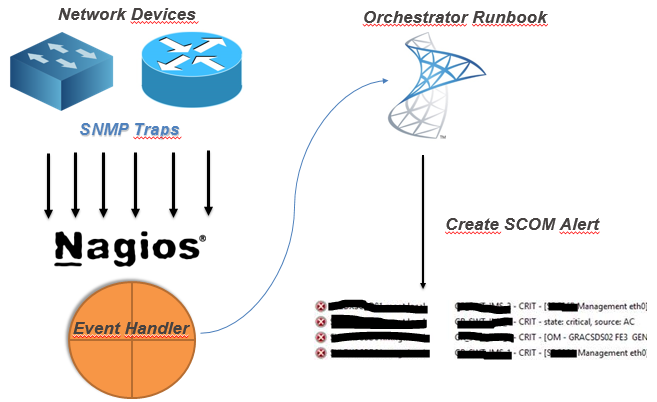
My idea (and working idea!) :

(yes, this was the powerpoint i sent to the customer! - hahah!)


So, after you've your monitoring criteria in Nagios configured, you need to :
  1. Create a Orchestrator Runbook that receives some parameters
  2. Create Nagios Event-Handler to 'consume' that runbook by orchestrator web-service


So, my Orchestrator Runbook :


Details about the MKAlertInput :


Create Alert details :


So, since i've got my runbook, i need to make a bash script to consume orchestrator runbook.
But, first, you need to know :
Your new runbook ID
And your runbook parameters ID
How ? Simple !
Connect to your MSSQL Server (Orchestrator BD) and run this :

 -- Runbook ID
 SELECT   
 Name as 'Runbook Name',  
 LOWER(ID) as 'Runbook ID'  
 FROM [Orchestrator].[Microsoft.SystemCenter.Orchestrator].[Runbooks]  
 -- Parameters ID
 SELECT LOWER(Parameters.Id) , Parameters.Name  
 FROM [Orchestrator].[Microsoft.SystemCenter.Orchestrator].[RunbookParameters] AS Parameters  
 INNER JOIN [Orchestrator].[Microsoft.SystemCenter.Orchestrator].[Runbooks] Runbooks ON Parameters.RunbookId = Runbooks.Id  
 -- THIS ID Showld be the one from the first query!  
 WHERE Runbooks.Id = '0B3E5FA3-A2E9-4337-BC63-050FC347A908'   

Since you got the ID's you need, you need to create your Nagios Event Handler, so every time you've na alert you can handle it and forward it to SCOM.


So, my script (for this scenario!)
 #!/bin/sh  
 # Nagios input data into vars#  
 host_name="$1"  
 description="$3"  
 plugin_output="$3 | $4 @ $5"  
 last_state_change=`date +"%d-%m-%Y %T"`  
 servicestate="$2"  
 # Orchestrator Info #  
 url='http://ORCHSERVER:81/Orchestrator2012/Orchestrator.svc/Jobs/'  
 user='DOMAIN\ORCHUSER'  
 password='ORCHPASSWORD'  
 case "$servicestate" in  
     OK)  
         echo ""  
     ;;  
     WARNING)  
         echo ""  
     ;;  
     CRITICAL)  
         xml="<?xml version=\"1.0\" encoding=\"utf-8\" standalone=\"yes\"?><entry xmlns:d=\"http://schemas.microsoft.com/ado/2007/08/dataservices\" xmlns:m=\"http://schemas.microsoft.com/ado/2007/08/dataservices/metadata\" xmlns=\"http://www.w3.org/2005/Atom\"><content type=\"application/xml\"><m:properties><d:Parameters>&lt;Data&gt;&lt;Parameter&gt;&lt;Name&gt;host_name&lt;/Name&gt;&lt;ID&gt;{c2555c8a-4c1c-4c04-a175-d27ccb27aeb3}&lt;/ID&gt;&lt;Value&gt;$host_name&lt;/Value&gt;&lt;/Parameter&gt;&lt;Parameter&gt;&lt;Name&gt;description&lt;/Name&gt;&lt;ID&gt;{e47406b6-fbd7-4bc5-b7a5-a1216f4fdfe5}&lt;/ID&gt;&lt;Value&gt;$description&lt;/Value&gt;&lt;/Parameter&gt;&lt;Parameter&gt;&lt;Name&gt;plugin_output&lt;/Name&gt;&lt;ID&gt;{406620e8-5fc0-4318-ad6b-987d9d491b09}&lt;/ID&gt;&lt;Value&gt;$plugin_output&lt;/Value&gt;&lt;/Parameter&gt;&lt;Parameter&gt;&lt;Name&gt;last_state_change&lt;/Name&gt;&lt;ID&gt;{35ab0932-df75-42d0-9715-935d3510b532}&lt;/ID&gt;&lt;Value&gt;$last_state_change&lt;/Value&gt;&lt;/Parameter&gt;&lt;/Data&gt;</d:Parameters><d:RunbookId type=\"Edm.Guid\">0b3e5fa3-a2e9-4337-bc63-050fc347a908</d:RunbookId></m:properties></content></entry>"  
         # XML 2 File  
         xml_file=`< /dev/urandom tr -dc _A-Z-a-z-0-9 | head -c10`  
         echo "$xml" > /tmp/$xml_file  
         # Post data into SCOrch Web-Service  
         curl --ntlm -u $user:$password -H 'Content-Type:application/atom+xml' -d @/tmp/$xml_file -X POST $url  
         ;;  
     UNKNOWN)  
         echo ""  
         ;;  
 esac  

Now, you need to tell nagios to use this script, so paste this config : (Remember, i'm using Check_MK)
 extra_nagios_conf += r"""  
 define command {  
   command_name  scorchws  
   command_line  /omd/sites/nagdsv/gdc/bin/orchestratorws.sh "$HOSTNAME$" "$SERVICESTATE$" "$SERVICEDESC$" "$SERVICEOUTPUT$" "$HOSTGROUPNAMES$"  
 }  
 """  
 extra_service_conf["event_handler"] = [  
   ( "scorchws", ALL_HOSTS, ALL_SERVICES ),  
 ]  
 extra_service_conf["event_handler_enabled"] = [  
   ( "1", ALL_HOSTS, ALL_SERVICES ),  
 ]  

Everything in place … this is what you get in SCOM :

Hope this could be helpful for you :)

Cheers,

Wednesday, March 30, 2016

OpsMgr (SCOM) - Unix/Linux Agents Requisites and Troubleshooting

UNIX/Linux Monitoring/Discovery in OpsMgr can be very hard to troubleshoot sometimes.
You can have several discovery issues, like:
- SSH connection erros;
- Certificate Issues;
- Network port issues;
- Bad SUDO permissions;
- And so on.

Since there's a lot of information spreaded in several blogs, but i've never founded a centralized source of troubleshooting steps about this thread, i've decided to create this post/thread to continually update it with found errors and related resolution.

First, check if you have any of this errors documented on TechNet :
http://social.technet.microsoft.com/wiki/contents/articles/4966.scom-2012-troubleshooting-unixlinux-agent-discovery.aspx

If not, you can read further :)

In first place i'll leave all the pre-requisites you'll need to have on your environment to make it work perfectly.

First, you need a user!
root or with SUDO permissions ?
If your UNIX/Linux SysAdmin wants to limit your 'sudoers' file, this is what you need :
(root) NOPASSWD: /bin/sh -c cp /tmp/scx-monuser/scx.pem /etc/opt/microsoft/scx/ssl/scx.pem; rm -rf /tmp/scx-monuser; /opt/microsoft/scx/bin/tools/scxadmin -restart  
(root) NOPASSWD: /bin/sh -c sh /tmp/scx-monuser/GetOSVersion.sh; EC\=$?; rm -rf /tmp/scx-monuser; exit $EC  
(root) NOPASSWD: /bin/sh -c cat /etc/opt/microsoft/scx/ssl/scx.pem  
(root) NOPASSWD: /bin/sh -c rpm -e scx  
(root) NOPASSWD: /bin/sh -c /bin/rpm -F --force /tmp/scx-monuser/scx-*.rpm; EC\=$?; cd /tmp; rm -rf /tmp/scx-monuser; exit $EC  
(root) NOPASSWD: /bin/sh -c /bin/rpm -U --force /tmp/scx-monuser/scx-*.rpm; EC\=$?; cd /tmp; rm -rf /tmp/scx-monuser; exit $EC  
(root) NOPASSWD: /opt/microsoft/scx/bin/scxlogfilereader -p  
# I've added this so you can re-generate certificates if you need to  
(root) NOPASSWD: /opt/microsoft/scx/bin/tools/scxsslconfig *  

If not, you'll just need :
monuser ALL=(ALL) NOPASSWD: ALL
Remind that you need to comment out the line :
#Defaults !requiretty
so it needs to be as :
Defaults !requiretty

Next, you need to ensure you've TCP/IP port connection from your UNIX/Linux Resource Pool Servers to your UNIX/Linux servers on ports 22 and 1270.

Other thing you might need to is to re-generate your SCXAgent certificate.
Some companies have 2 different FQDN's for the same server so it can respond in a different network device (management network device instead of the service network device), so if you're discovering your server by that particular management FQDN, the certificate needs to be generated with the FQDN you're discovering the server with.
Eg.
You have server myserver.mydomain.com to discover
The management FQDN is myserver.mymngtdomain.com
You'll be discoverying your server by myserver.mymngtdomain.com
So, you need to ensure that the certificate is generated to it.
Login by SSH into myserver.mymngtdomain.com and run :
openssl x509 -noout -in /etc/opt/microsoft/scx/ssl/scx.pem -subject -issuer -dates  
If it's not the FQDN you want, run :
sudo /opt/microsoft/scx/bin/tools/scxsslconfig -f -h myserver -d mymngtdomain.com
So, the errors you can come across with are :

1) WinRM cannot complete the operation.
    Verify that the specified computer name is valid, that the computer is accessible over the network, and that a firewall exception for the WinRM service is enable and allows access from this computer.
   By default, the WinRM firewall exception for public profiles limits access to remote computers within the same local subnet.
2) Agent verification failed. Error detail: The server certificate on the destination computer (SERVER_FQDN:1270) has the following errors
3) DNS Configuration error:
    The provided hostname SERVER_FQDN resolved to the IP address of x.x.x.x.
    The hostname SERVER_FQDN returned by reverse lookup of the IP address x.x.x.x did not match the provided hostname.
    Verify the DNS configuration and try the request again.
4) sudo: no tty present and no askpass program specified
5) The agent responded to the request but the WSMan connection failed due to: Access is Denied.”

# 1) WinRM cannot complete the operation.

Verify that your FQND is correct;
You have TCP/IP connection with your server in 22 and 1270 ports;
You might use this PS1 script from one of your UNIX/Linux Resource Pool servers to check :
$list = Get-Content -path 'Path_to_ServerList'
Foreach ($server in $list) {
    $SSHStatus = (new-object System.Net.Sockets.TcpClient("$server","22")).connected
    $MNGTStatus = (new-object System.Net.Sockets.TcpClient("$server","1270")).connected
    "$server | $SSHStatus | $MNGTStatus"
}
# 2) Agent verification failed. Error detail: The server certificate on the destination computer (SERVER_FQDN:1270) has the following errors

The certificate is not compliant with the FQDN you're discoverying the server with.
For example :
You have server myserver.mydomain.com to discover
The management FQDN is myserver.mymngtdomain.com
You'll be discoverying your server by myserver.mymngtdomain.com
So, you need to ensure that the certificate is generated to it.
Login by SSH into myserver.mymngtdomain.com and run :
openssl x509 -noout -in /etc/opt/microsoft/scx/ssl/scx.pem -subject -issuer -dates
If it's not the FQDN you want, run :
sudo /opt/microsoft/scx/bin/tools/scxsslconfig -f -h myserver -d mymngtdomain.com
If you've several UNIX/Linux servers in this condition, use this ShellScript i've made to correct it :
(I personal use MobaXTerm to do such things)
#!/bin/sh
for i in `cat list`
do
    a=`echo $i | cut -d"." -f1`
    ssh monuser@$i "sudo /opt/microsoft/scx/bin/tools/scxsslconfig -f -h $a -d mymngtdomain.com"
done
# 3) DNS Configuration error.

You might need to correct name resolution configuration for forward and reverse lookup on your DNS server.

# 4) sudo: no tty present and no askpass program specified

Well, this is a sudo problem.
Check if you have either this in (/etc/sudoers) :
monuser ALL=(ALL) NOPASSWD: ALL
or this in your sudoers file:
(root) NOPASSWD: /bin/sh -c cp /tmp/scx-monuser/scx.pem /etc/opt/microsoft/scx/ssl/scx.pem; rm -rf /tmp/scx-monuser; /opt/microsoft/scx/bin/tools/scxadmin -restart
(root) NOPASSWD: /bin/sh -c sh /tmp/scx-monuser/GetOSVersion.sh; EC\=$?; rm -rf /tmp/scx-monuser; exit $EC
(root) NOPASSWD: /bin/sh -c cat /etc/opt/microsoft/scx/ssl/scx.pem
(root) NOPASSWD: /bin/sh -c rpm -e scx
(root) NOPASSWD: /bin/sh -c /bin/rpm -F --force /tmp/scx-monuser/scx-*.rpm; EC\=$?; cd /tmp; rm -rf /tmp/scx-monuser; exit $EC
(root) NOPASSWD: /bin/sh -c /bin/rpm -U --force /tmp/scx-monuser/scx-*.rpm; EC\=$?; cd /tmp; rm -rf /tmp/scx-monuser; exit $EC
(root) NOPASSWD: /opt/microsoft/scx/bin/scxlogfilereader -p
# I've added this so you can re-generate certificates if you need to
(root) NOPASSWD: /opt/microsoft/scx/bin/tools/scxsslconfig *
and if you've this line commented out in (/etc/sudoers) :
#Defaults !requiretty
# 5) The agent responded to the request but the WSMan connection failed due to: Access is Denied.”

  If you get the "The agent responded to the request but the WSMan connection failed due to: Access is Denied.”" error, first, from one of your UNIX/Linux Resource Pool, run :
Test-WSMan -Port 1270 -ComputerName “ServerName” -Authentication Basic -Credential (Get-Credential) -UseSSL
If you got an error, you might need to edit your pam file (/etc/pam.d/omi) and leave it like this :
omi auth sufficient pam_vas3.so create_homedir get_nonvas_pass store_creds try_first_pass
omi auth requisite pam_vas3.so echo_return
omi auth required /usr/lib/security/pam_aix use_new_state use_first_pass
omi account required /usr/lib/security/pam_seos.o
omi account sufficient pam_vas3.so
omi account requisite pam_vas3.so echo_return
omi account required /usr/lib/security/pam_aix
Re-discover your agent, and you'll get it working!